
Gone are the days of trying to remember where you had your last repair or digging through receipts in a drawer. Now, everything is in one place.
Not sure to whom to trust your car maintenance:


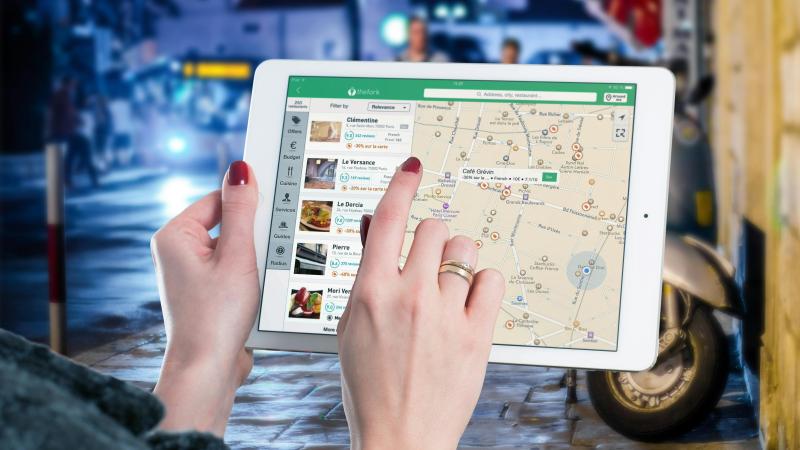
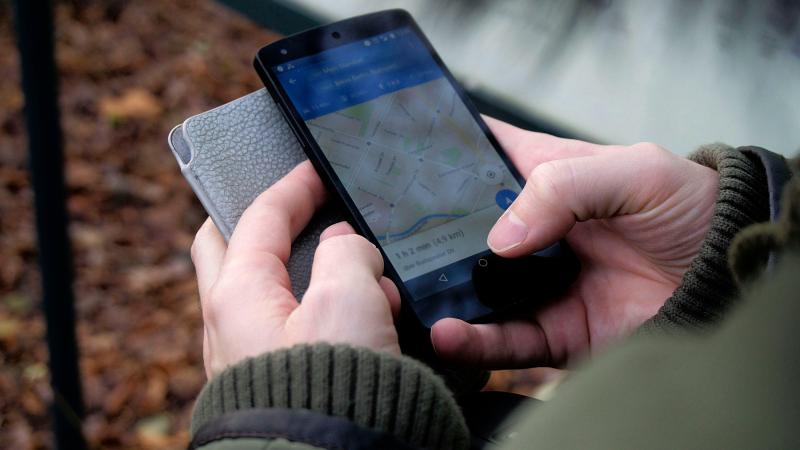
Full control over your car’s maintenance. Register all your vehicles. See all completed repairs and inspections. Track mileage at every visit. Access all repair orders with detailed information about the work done. When selling your car, you can show the complete maintenance history.
Forget phone calls and waiting on hold. See available times in real time. Choose a convenient slot with just a few clicks. Receive instant confirmation. If you need to cancel, do it through the platform. Get a reminder before your appointment.
Never lose an invoice again
Every repair order is stored in the system. You can download it as a PDF at any time. See exactly which parts were replaced and how much you paid for each service. Useful for warranty cases or disputes.

Your opinion matters. After each service, you can leave a review. Rate the quality of the work. Share your experience with other users. Help good workshops grow. Warn others about poor service.
Access from any device. Open it from your phone whenever it’s convenient. Check your repair history while on the go. Book an appointment from anywhere. No need to install an app. Works on Android, iPhone, tablet, or computer.
Use it without paying
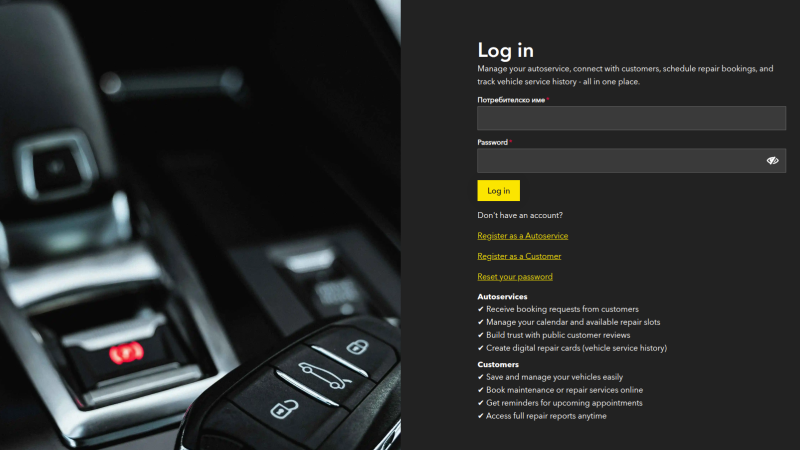




You never miss important information. Receive an email when a booking is confirmed. Get a reminder before an appointment. Receive a notification when a repair is completed. Be alerted when the repair status changes.






- Log in to your account.
- Go to the Home Page in the “Map” section.
- Select an auto service provider.
- Choose an available date and time.
- Confirm the booking.
- You will receive an email confirmation after the booking is made.
- Log in to your account.
- Go to the Home Page in the “Map” section.
- Select an auto service provider.
- Choose an available date and time.
- Confirm the booking.
- You will receive an email confirmation after the booking is made.
No, the system does not allow editing of bookings. If you need to change the time, you must:
- Cancel the existing booking.
- Create a new booking for your preferred time (if available).
Yes, as long as the booking is not for the same slot. You can only book once per available slot.
Example: You can book Monday at 9:00 (oil change) and Friday at 12:00 (brake pads replacement) for the same service.
Yes, you can have as many bookings as you want for different service providers, as long as slots are available in the platform.
Example: One booking for an oil change service and another for a tire replacement service.
- Log in to your account.
- Go to “My Bookings.”
- Select the booking you want to cancel.
- Click “Cancel.”
- Confirm the cancellation.
Both parties will be notified, and the slot will become available again.